
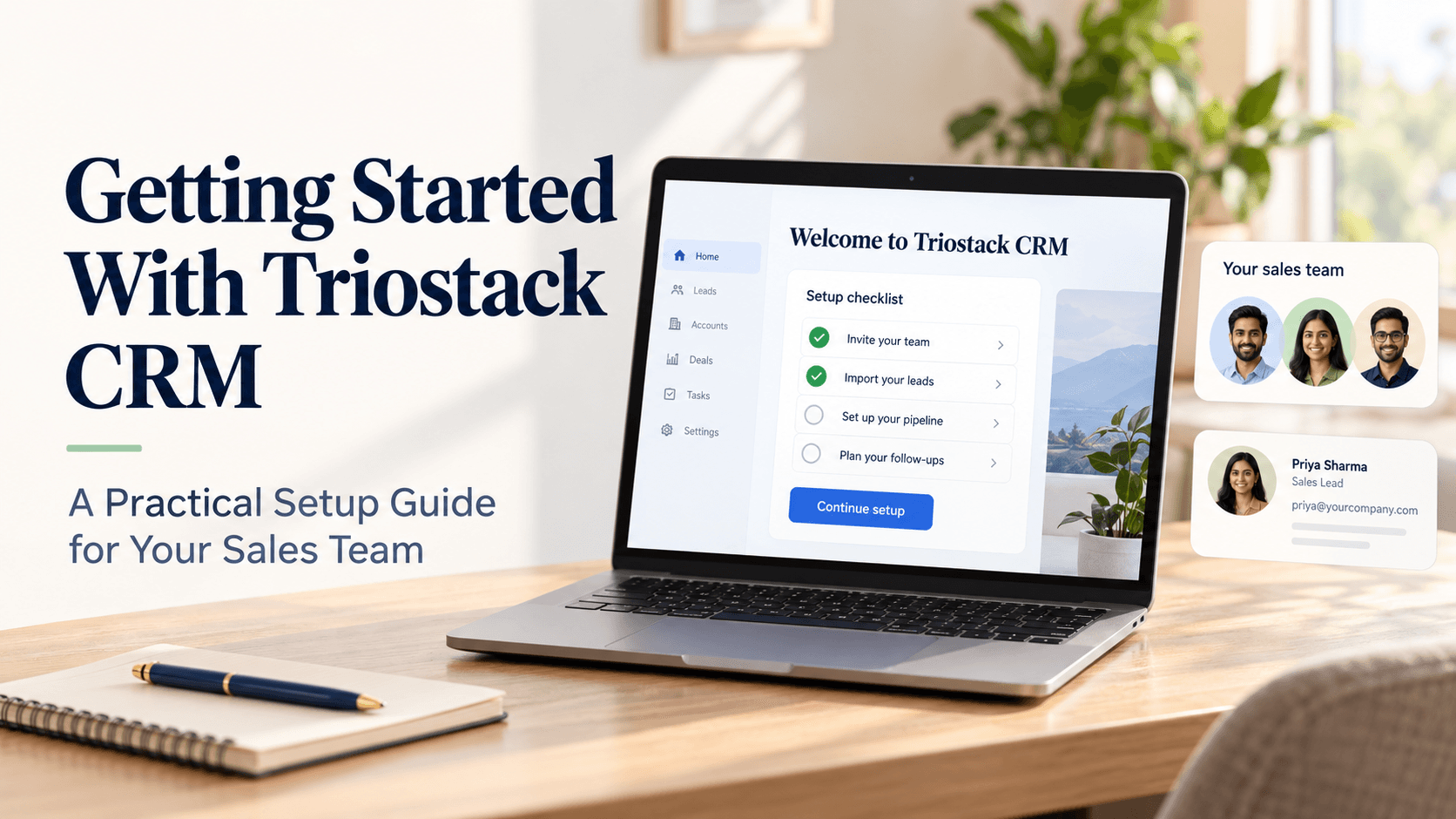
Triostack CRM is designed to help Indian small and medium businesses manage customer conversations with clarity and speed. With a shared WhatsApp inbox, easy contact management, ready-made templates, and automation triggers, you can align your sales team to respond faster and close more deals. This practical setup guide walks you through configuring Triostack CRM for your sales team, with real-world, hypothetical examples to show how the features fit daily workflows. It also covers SIM calling through the mobile app, call logs and call recordings on compatible Android devices, and AI-driven capabilities like Hindi, Hinglish, and English transcription, lead intent analysis, lead scoring, and automatic lead assignment.
Plan Your Setup
Start with a simple map of how your team will use Triostack CRM. Identify roles (sales executives, team lead, admin), define who manages the shared WhatsApp inbox, who imports contacts, and who oversees templates and flows. Decide which fields you will track for each lead and contact, such as lead source, product interest, stage, owner, and last activity. Create a lightweight routing plan: for example, new inquiries about pricing go to the mid-level sales rep, while high-value product inquiries go to a senior executive. Use these decisions to draft your first set of templates and automation rules.
Set Up the Shared WhatsApp Inbox and Contacts
The shared WhatsApp inbox is the central hub for customer messages. Add the business numbers you will use for customer conversations and invite your sales team to access the inbox. Here are practical steps with a hypothetical shopfront scenario:
- Connect a WhatsApp business number to the shared inbox so every team member can view and respond to inquiries about products such as electronics, fashion, or home appliances.
- Import existing contacts from spreadsheets or your legacy CRM. Use a simple rule: keep primary contact fields (name, phone, company, email) and map source data to Triostack fields (Source, Lead Type, Interest).
- Deduplicate contacts to avoid sending multiple messages to the same customer. If a contact is already in the system, attach new conversations to the same profile.
- Prepare templates for common responses—availability, price ranges, delivery timelines—so your team can respond quickly with consistent messaging.
Example: A small boutique in Mumbai uses a shared inbox to answer product availability across multiple SKUs. By tagging conversations with product interest and price range, the team can route inquiries to the right product specialist and keep chat history unified.
Create Templates, Flows and Automation Triggers
Templates save time and ensure consistent tone across the team. Flows guide the customer journey, and automation triggers perform routine steps automatically. Build a starter set to handle typical inquiries:
- Templates: Greeting messages, pricing quotes, stock status, appointment scheduling, and post-purchase follow-ups.
- Flows: After a fresh inquiry, tag the lead with interest level, assign an owner, and schedule a follow-up reminder if there is no reply within a defined window.
- Automation triggers: New lead created -> auto-assign to owner; lead status changes to "Qualified" -> trigger a scheduled follow-up; call completed -> log outcome and create a note.
Practical example: If a WhatsApp inquiry mentions “pricing” and is from a customer in Bengaluru, a flow might route the lead to a mid-level sales rep, tag it as high priority, and send a templated acknowledgment while scheduling a 1-day follow-up.
Automations and Lead Routing
Automatic lead assignment helps your team respond quickly and fairly. Establish straightforward rules that reflect your sales process. You can use lead source, product interest, location, or even time of day to distribute leads to the right person. For instance:
- If Lead Source = WhatsApp and Interest = “Pricing”, assign to Tier 2 Executive.
- If Location = Pune and Interest = “New Customer”, assign to the Senior Executive on rotation.
- If a lead hasn’t responded within 48 hours, trigger a gentle reminder via template and reassign for a secondary follow-up if needed.
Lead intent analysis helps you focus on the most promising conversations. The system can surface the likelihood that a conversation represents a serious buying signal, so you can adjust outreach accordingly and propose relevant next steps in your follow-up messages.
Phone and Call Capabilities
Triostack CRM supports SIM calling through the mobile app, making it convenient to switch between chat and voice as needed. You can log calls and access call recordings on compatible Android devices to review conversations with customers. The AI-powered transcription feature supports Hindi, Hinglish, and English, turning spoken calls into searchable notes that your team can reference during follow-ups. A practical workflow might look like this:
- A sales rep makes a call from the Triostack CRM app after a WhatsApp inquiry about a product. The call is logged automatically and a transcription is generated in the language used during the conversation.
- Key intents and quotes are captured in the notes, helping the next agent pick up the thread without repeating information.
- If the customer requests a quote, the agent can quickly pull the relevant template, insert product details, and send it via the shared inbox—all while the call recording remains accessible for reference.
Note: SIM calls incur standard mobile plan charges, as with any mobile network usage.
Lead Scoring, Intent Analysis and Follow-Up Suggestions
Lead scoring and intent analysis provide a data-informed way to prioritize conversations. As conversations unfold, Triostack CRM can analyze language cues, engagement level, and historical data to assign a score that reflects how ready a lead is to buy. Use these insights to tailor follow-ups:
- High-intent leads may trigger faster follow-ups, intensified outreach, or direct scheduling of a product demo.
- Low-intent leads can be nurtured with educational content and periodic check-ins without overwhelming the customer.
- Follow-up suggestions appear in the CRM, guiding reps on what to say next, which template to use, and when to re-engage.
Together, intent analysis and lead scoring help your team focus on the conversations most likely to convert, while automation handles routine steps like reminders and task creation.
Practical Onboarding Steps
- Sign in to Triostack CRM and invite your sales team members with appropriate roles.
- Connect your WhatsApp business number to the shared inbox and verify access rights for the team.
- Import existing contacts and leads, then map fields such as Name, Phone, Email, Company, Lead Source, and Product Interest.
- Create a small set of message templates for common inquiries (availability, pricing, booking) and a few initial flows (inquiry > assign > follow-up).
- Define automatic lead assignment rules based on location, product interest, and seniority to ensure quick responses.
- Configure AI transcription language preferences (Hindi, Hinglish, English) and test transcription accuracy with a sample call.
- Run a mock inquiry from a colleague to verify templates, flows, and notifications.
- Introduce the team to the dashboard: lead status, next actions, and how to access call logs and notes.
Usage Tips for Indian SMBs
- Leverage Hinglish in templates when addressing a broad audience, then switch to English for formal proposals.
- Set business hours in your workflow so follow-ups feel timely but respectful of off-hours.
- Regularly review lead scores and adjust thresholds as you gain data from real conversations.
- Keep templates concise and customer-centric; personalize with the contact’s name and referenced product or inquiry.
Frequently Asked Questions
How do I start with Triostack CRM for my small business?
Begin by planning your setup: identify roles, connect your WhatsApp inbox, import contacts, and create a minimal set of templates and flows. Then configure lead routing rules and enable AI transcription for calls. Run a test inquiry to ensure the team can navigate the inbox, use templates, and see how lead scores guide follow-ups.
Can Triostack CRM route leads automatically?
Yes. You can define automation rules to assign leads based on lead source, location, product interest, or other attributes. These rules work with incoming inquiries from the shared inbox and help distribute work evenly among sales reps.
How does AI call transcription work across languages?
The AI transcription supports Hindi, Hinglish, and English. During or after a call, the system converts speech to text, creating searchable notes that help your team recall details, quote references, and action items for follow-ups.
Can I use SIM calling and view call logs on Android?
Yes. You can make SIM calls through the mobile app, and both call logs and recordings are available on compatible Android devices. This makes it easy to review conversations and attach notes to the corresponding lead record.
Closing and Next Steps
Getting started with Triostack CRM is about building a practical, repeatable workflow for your sales team. Start small with a shared inbox, a handful of templates, and a few automation rules. As you collect data on conversations, leads, and follow-ups, you can fine-tune lead scoring, intent analysis, and routing to better align with your business goals.
To explore more detailed setup assistance or to tailor Triostack CRM to your specific business needs, contact the Triostack CRM team for guidance and support.